TL;DR
Learning how to create a quiz with AI takes about five minutes once you know the four core steps: pick a source (a topic, a PDF, or pasted notes), configure question types and difficulty, review and edit the draft, then export to PDF, DOCX, or a shareable link. This tutorial walks through each step with screenshots, covers the three most common source types, and ends with a troubleshooting checklist for when questions come out too vague, too easy, or factually off. If you already know the basics of a quiz generator, you can skip to Step 2. Otherwise, follow in order: the whole flow is sequential, and each step only takes one or two clicks.

Prerequisites — What You Need Before Starting
Before you open the generator, gather three small things: a clear subject or source material, a rough idea of how many questions you want, and the audience you are writing for. That is it. You do not need a rubric, a question bank, or prior AI experience.
For the subject, you have three options: a short phrase such as "photosynthesis light reactions," a PDF file (lesson handout, textbook chapter, meeting notes), or pasted text (up to about 20,000 characters in one go). Any of these feeds the generator. If you have all three, pick whichever is most specific. Specificity beats volume every time.
For the question count, most tutorial quizzes land between 10 and 20 questions. Anything shorter than 5 questions rarely covers a topic well; anything longer than 30 starts to feel like an exam, which is a different flow (see our AI test generator or exam maker for those use cases). A good rule of thumb: one question per major concept, plus one or two "bridging" questions that combine concepts.
For the audience, decide whether you are quizzing beginners, intermediate learners, or review-level students. The generator uses this to calibrate vocabulary, distractor difficulty, and prompt phrasing. A middle-school science quiz and a first-year university quiz can cover the exact same topic but will read very differently. If you are not sure, start at "intermediate" and regenerate if the tone is off.
Two optional extras that help: (1) a list of 3 to 5 must-cover subtopics so the AI does not drift into tangents, and (2) any source you consider authoritative, which you can upload as a PDF to anchor the facts. Both are covered in Step 1.
Step 1 — Choose Your Quiz Source (topic / PDF / notes)
The first decision is where the questions come from. The AI Quiz Generator supports three source types, and the right choice depends on how concrete your material already is.
Path A: From a topic keyword. This is the fastest path. Type something like "Photosynthesis — light and dark reactions" or "Python list comprehensions for beginners" into the topic field, and the generator pulls from its trained knowledge to build questions. Best for well-established subjects where you trust a modern AI to have solid coverage: school curriculum topics, programming fundamentals, general trivia. Less good for proprietary content, very recent events, or niche industry facts.
Path B: From a PDF. Upload a PDF (a textbook chapter, a slide deck exported to PDF, a research paper, a training manual) and the generator reads the file and writes questions grounded in that document. This is the path most teachers and trainers use, because it guarantees the quiz matches what students actually studied. The dedicated route for this is Quiz Maker from PDF, and it handles files up to 50 MB. Upload quality matters: a scanned PDF with bad OCR will produce bad questions. If your PDF is a scan, run it through an OCR tool first.
Path C: From pasted notes. Paste raw text: lecture notes, meeting minutes, a Notion export, a chat transcript, a Wikipedia section. The Quiz Maker from Notes route is built for this and handles roughly 20,000 characters per session. Great for study-group review, onboarding quizzes, or turning a blog post into a comprehension check. Paste is faster than PDF upload if your content is already in plain text.
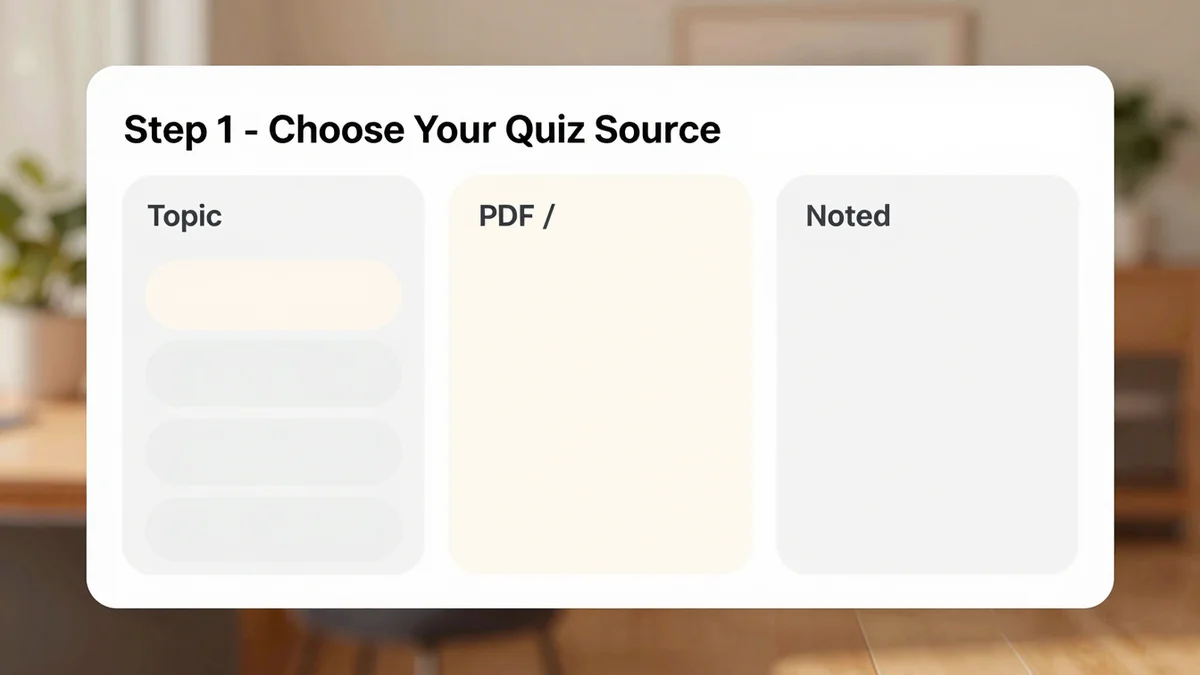
Three concrete examples. A high-school biology teacher uploads last week's handout as a PDF and asks for 15 questions on cell respiration: Path B, because the quiz must match the specific handout wording. A corporate trainer pastes the transcript of a compliance webinar into the notes box: Path C, because the transcript is already text and is specific to their company. A self-learner typing "REST API design principles, intermediate" into the topic field: Path A, because the topic is well-established and the learner wants breadth, not a specific source.
If you are unsure what an AI quiz generator actually does under the hood before you pick a path, skim our primer: What Is an AI Quiz Generator?. It covers the model pipeline in two minutes.
Step 2 — Configure Question Types and Difficulty
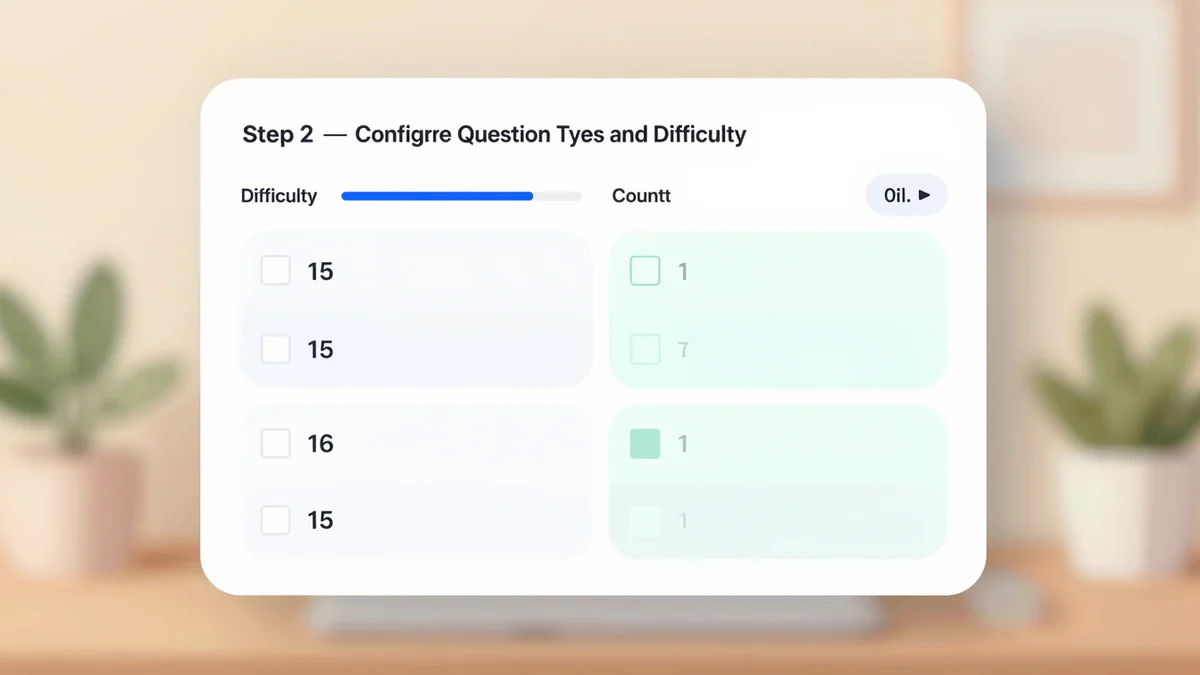
Once the source is set, the configuration panel appears. There are four main controls, and each directly affects how the quiz reads and how useful it is.
Question type is the biggest lever. Four options cover almost every use case: Multiple Choice (MCQ), True / False, Short Answer, and Fill-in-the-Blank. You can mix types in one quiz, e.g. 10 MCQ plus 5 short answer, which is often the best structure because MCQ tests recognition and short answer tests recall. If you are building a quick review quiz, go MCQ-only. If you are building a check of writing skill, bias toward short answer. True / False is fine as filler but do not make it the whole quiz — it rewards guessing.
Difficulty is typically a 3-step or 5-step slider: Beginner, Intermediate, Advanced, with two half-steps in between on some tools. Difficulty changes three things under the hood: the vocabulary level of question stems, the plausibility of distractors (wrong-but-tempting MCQ options), and whether questions test recall versus application. An "advanced" biology MCQ might give you a lab scenario and ask which process explains the result; a "beginner" one just asks you to name the process. Start at Intermediate. Regenerate one level up or down if the first draft reads wrong.
Question count — 10 to 20 for tutorial quizzes, as noted in Prerequisites. If you plan to export to PDF for a classroom, 15 is a common sweet spot: one double-sided page at 12pt.
Language and tone — if your audience is not English-first, set the output language before generating. Regenerating to switch language works but wastes a draft. Tone usually has three options: formal (exam-like), neutral (default), and friendly (casual, uses "you"). Classroom work and corporate training use neutral or formal; marketing quizzes and onboarding fun-quizzes use friendly.
A small but underused feature: most generators accept a "must include" list — two or three subtopics or keywords you want guaranteed coverage of. Use it. Without it, a 15-question quiz on "World War II" might skip the Pacific theater entirely; with it, you can force three questions on Pacific-theater events. This single input is the single biggest quality improvement you can make at configuration time.
For specialised forms such as vocabulary drilling or multiple-choice-only study quizzes, the project has dedicated routes: Multiple Choice Quiz Maker and vocabulary-focused builders. Same engine, preset configuration.
Step 3 — Generate, Review, and Edit
Click Generate. The AI takes roughly 10 to 30 seconds depending on source size and question count. What appears next is a draft, not a final quiz. Treat it that way. Every seasoned user of AI quiz tools edits the first draft.
Read every question once before shipping. Ninety percent will be fine. The other ten percent will have one of four common flaws: (a) a stem that is technically correct but ambiguous, (b) a distractor that is equally valid as the "correct" answer, (c) a factual error (rarer with PDF-grounded quizzes, more common with topic-keyword quizzes), or (d) a duplicate concept covered twice in slightly different wording.
The editor lets you fix each item in place. Click a question to open the inline editor. You can rewrite the stem, edit or add options, change the marked correct answer, adjust the difficulty tag for that single question, or regenerate only that question while keeping the rest of the quiz. Per-question regeneration is the most efficient tool in the whole flow. If question 7 is weak, do not re-roll the entire quiz; just re-roll question 7.
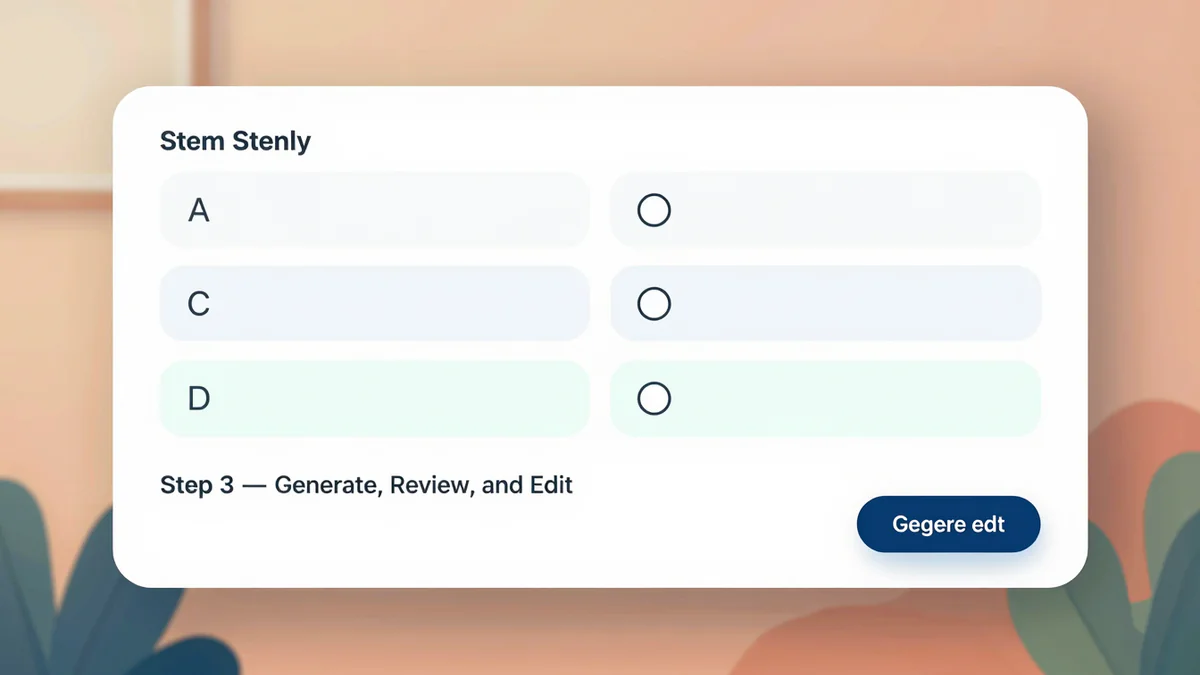
Two quick quality checks before you export. The answer key sanity check: skim only the answer key and confirm no two adjacent questions share a correct-option letter pattern (e.g. C, C, C, C in a row), which is a telltale of low shuffle quality. Most generators auto-shuffle, but it is worth a glance. The distractor quality check: on MCQ items, read the three wrong options. Are any of them obviously wrong (e.g. the distractor for "capital of France" being "a type of sandwich")? Obvious distractors make the quiz trivial. Replace them with plausible wrongs that test a real misconception.
If you need to add a question the AI missed, the editor has an "Add question" button at the bottom. You can write it from scratch or paste a stem and let the AI generate matching options and a correct answer. Useful for the one case the generator always misses: the specific example you discussed in class last Thursday.
Step 4 — Export to PDF, DOCX, or Share Link
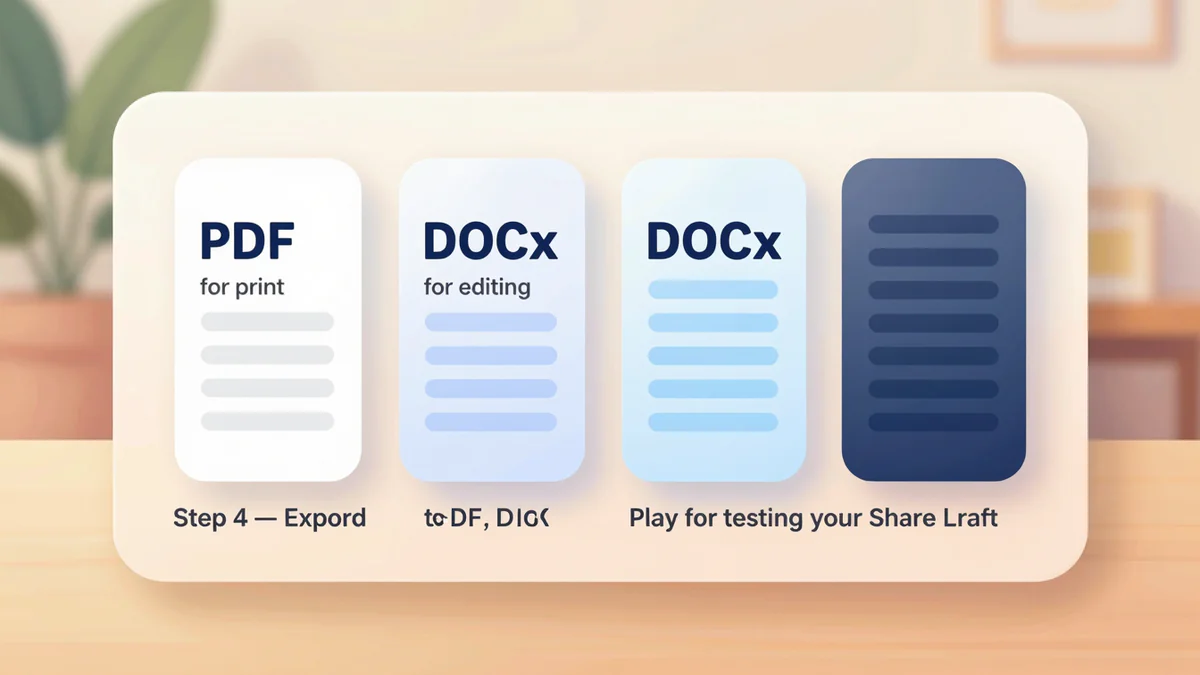
With the quiz reviewed, exporting is one click per target. Four formats cover every downstream workflow.
PDF is the classroom default. Two PDF variants: a quiz PDF (student copy, no answers) and a teacher PDF (same questions with the answer key and brief explanations below each). Most teachers print the quiz PDF and keep the teacher PDF on screen. PDF layout is fixed to A4 or US Letter; if you need something else, export to DOCX and resize.
DOCX is the flexible format. Useful if you want to edit the quiz further in Word or Google Docs, paste into a school LMS that takes rich text, or hand it to a colleague to tweak. Exported DOCX preserves question numbering, answer lettering, and the correct-answer markers as formatted text (not as a form), so it opens cleanly in any editor.
Share link is the fastest path for an online quiz. The generator produces a short URL that anyone can open in a browser to take the quiz interactively, with immediate scoring at the end. No login is required for takers. Good for study groups, social sharing, or a quick comprehension check at the end of a live session.
Play mode is the same as the share link but opens directly in your own browser, skipping the copy-link step. Useful when you want to self-test after building the quiz, or demo the experience before sharing it.
A note on file naming. Default filenames include the quiz title and a timestamp, which is fine for personal use but confusing when you generate 30 quizzes for a semester. Rename at export time using a simple pattern like grade9-bio-unit3-q01.pdf. Saves hours at year-end when you look back for a specific quiz.
If you are pushing quizzes into a dedicated revision workflow (e.g. running the same quiz weekly with refreshed questions), the revision tools section covers scheduled regeneration and question-bank rotation.
Troubleshooting & Pro Tips
Most first drafts work. When they do not, the problem is almost always one of three things, and each has a one-line fix.
Problem 1: questions are too vague or drift off-topic. Cause: the source was a short topic keyword and the AI interpreted it broadly. Fix: add a "must-include" list of 3 to 5 subtopics, or switch from Path A (topic) to Path B (PDF). A two-word topic gives the AI too much freedom; a PDF pins it down.
Problem 2: questions are too easy (or too hard). Cause: default difficulty does not match your audience. Fix: regenerate one level up or down. If you are already at the extremes and it is still wrong, the issue is usually question type: switch MCQ to short answer to raise difficulty, or the reverse to lower it. Short answer always feels harder because it tests recall, not recognition.
Problem 3: factual errors. Cause: the AI is hallucinating or working from outdated training data. Fix: upload an authoritative PDF via Quiz Maker from PDF and let the generator ground its questions in that document. Grounded generation cuts factual error rates by roughly an order of magnitude compared to keyword-only generation. Alternatively, paste the authoritative paragraph via Quiz Maker from Notes. Either way, grounded beats unguided.
Problem 4: duplicate or near-duplicate questions. Less common but annoying. Fix: use the editor's "merge or remove" action on the pair, then click "fill gap" to regenerate one replacement question at the right difficulty. Do not re-roll the whole quiz.
Three pro tips the docs rarely mention. Tip 1: generate two drafts, merge the best half of each. Takes 60 extra seconds and improves quality dramatically. The two drafts will cover different facets of the topic, and the union is almost always better than either alone. Tip 2: save successful prompts as templates. Most generators have a "save configuration" button. A template for "high-school biology, 15 questions, MCQ + short answer, intermediate, must-include key terms" can be reused all year. Tip 3: when in doubt, shorten the source. A 40-page PDF produces worse quizzes than the same PDF trimmed to the 8 pages that actually matter. The AI does not skim well; it treats every page as potentially relevant. Help it by removing the ones that are not.
If you are new to how AI quiz generation works as a category, our explainer What Is an AI Quiz Generator? covers the model pipeline, the grounding step, and where hallucinations come from. It pairs well with this tutorial.
Key Takeaways
- Four steps, about five minutes. Source → configure → review → export. Every experienced user of an AI quiz tool follows this flow.
- Pick the right source. Topic keyword for broad subjects, PDF for grounded content, pasted notes for plain text you already have. Specificity beats volume.
- Mix question types. MCQ plus short answer covers both recognition and recall. Pure MCQ or pure True-False produce thinner quizzes.
- Edit the draft, do not re-roll. Per-question regeneration is faster and preserves the good 90 percent.
- Ground to fix facts. If you see factual errors, upload an authoritative PDF and regenerate. Grounded quizzes are an order of magnitude more reliable than keyword-only ones.
- Save templates. A reusable configuration for your subject and audience turns a five-minute flow into a one-minute flow.
Ready to create your first AI quiz? Start Free → | See a Worked Example →